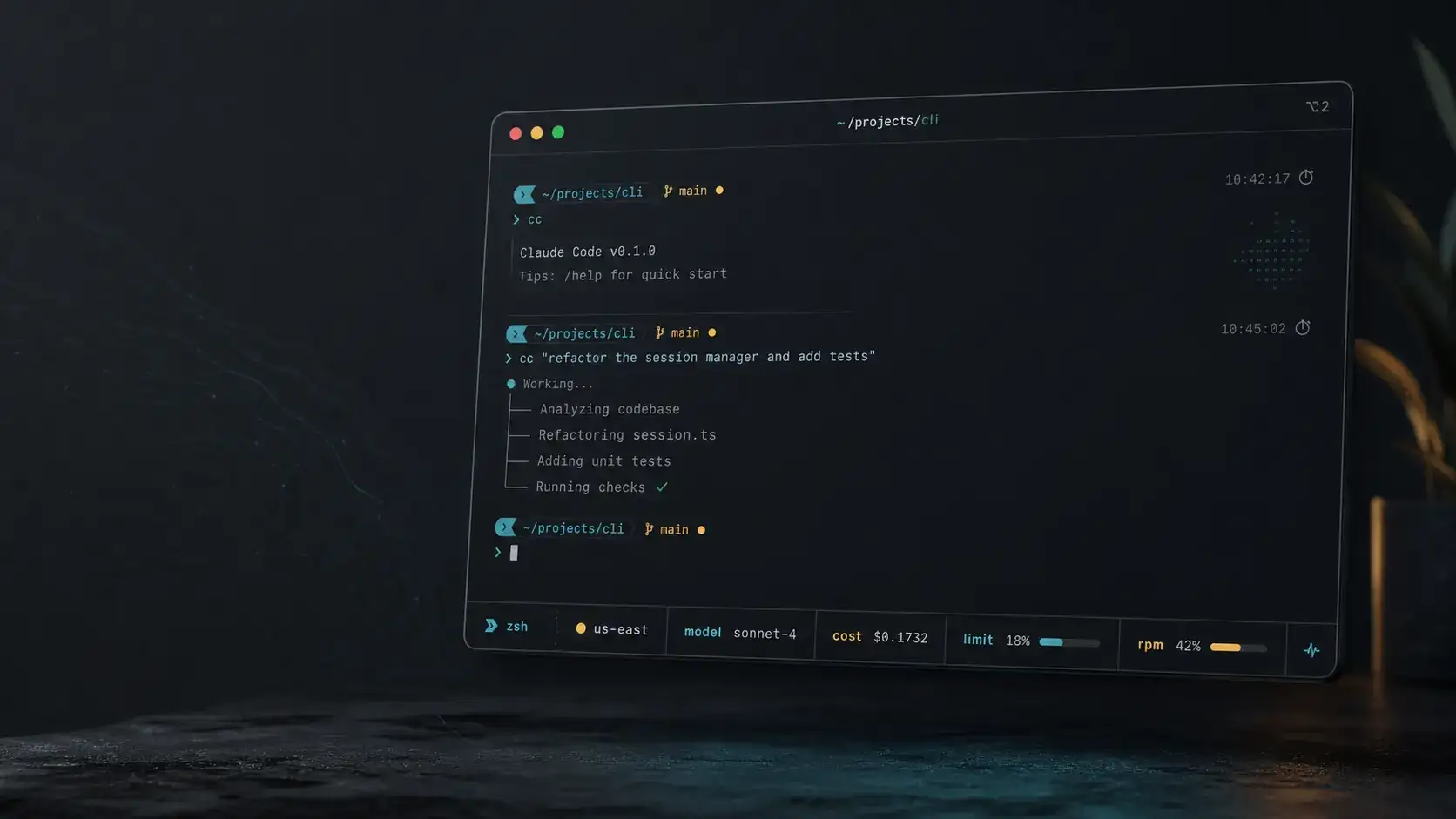
If you want Claude Code on macOS to actually be usable in day-to-day development, the setup that matters is: oh-my-zsh for terminal context, /terminal-setup for input handling, and /statusline with a custom script for real-time visibility into cost, model, and rate limits. Everything else is optional. This setup works the same on Linux and inside WSL on Windows, with only minor differences in installation paths.
After setting this up across multiple production WordPress and developer workflow projects, the difference is immediate: you stop guessing how much you’re spending, which model you are using, and when you’re about to hit limits. This is a clear bump in productivity, with real gains and real economy. And the whole setup takes less than 10 minutes.
The first time I ran Claude Code, my terminal looked exactly like every screenshot I'd seen from people complaining about it: a blank prompt, no context, no idea what model was running or how much session I had left. Just a cursor.
That lasted about two days before I started actually reading the docs — and then going past them.
What follows is the actual setup I run — oh-my-zsh, the built-in Claude Code commands, and a custom statusline script that gives you real-time cost, context window state, model identity, and rate limit bars. No npm packages for any of it.
Start with oh-my-zsh
macOS ships with zsh, and most modern Linux distributions support it out of the box or via package managers, or you can also try iTerm2 on macOS. Oh-my-zsh is the framework that makes it usable. Install it with:
sh -c "$(curl -fsSL https://raw.githubusercontent.com/ohmyzsh/ohmyzsh/master/tools/install.sh)"
Open ~/.zshrc and configure your plugins. The ones that actually matter for a Claude Code workflow:
plugins=(git zsh-autosuggestions zsh-syntax-highlighting)
zsh-autosuggestions and zsh-syntax-highlighting don't come bundled, so you need to install them first:
git clone https://github.com/zsh-users/zsh-autosuggestions ${ZSH_CUSTOM:-~/.oh-my-zsh/custom}/plugins/zsh-autosuggestions
git clone https://github.com/zsh-users/zsh-syntax-highlighting ${ZSH_CUSTOM:-~/.oh-my-zsh/custom}/plugins/zsh-syntax-highlighting
What each one does: the git plugin puts your current branch in the shell prompt, so you're never context-switching to run git branch while inside a Claude session. zsh-autosuggestions resurfaces commands from history as you type — useful when your claude invocations start accumulating flags. zsh-syntax-highlighting colors commands as you type; bad paths go red before you hit Enter.
For a theme, Powerlevel10k is the practical choice: fast to render, highly configurable, and it doesn't fight with Claude Code's own status output at the bottom of the terminal.
git clone --depth=1 https://github.com/romkatv/powerlevel10k.git ${ZSH_CUSTOM:-$HOME/.oh-my-zsh/custom}/themes/powerlevel10k
Then set ZSH_THEME="powerlevel10k/powerlevel10k" in your .zshrc and run source ~/.zshrc to trigger the config wizard.
You can also always run the setup with p10k configure.
Install Claude Code on macOS
Anthropic ships a native installer that requires no Node.js:
curl -fsSL https://claude.ai/install.sh | sh
It adds itself to your PATH by dropping a line into ~/.zshrc. Source your config or open a new terminal:
source ~/.zshrc
(On Linux, the same script works. On Windows, Claude Code now runs natively too; the Windows guide covers when it's still worth running it inside WSL.)
Then claude in any project directory. First run asks for Anthropic account authentication. After that, you're in.
The npm path (npm install -g @anthropic-ai/claude-code) still works if you're already in a Node environment, but the native installer is what Anthropic tests and supports first. Fewer dependencies means fewer things that silently break between macOS updates.
/terminal-setup: do this before anything else
Once Claude Code is running, type:
/terminal-setup
This configures your terminal emulator to handle Claude Code's keyboard shortcuts correctly. The critical ones: Shift+Enter for newlines within a prompt without submitting, and @ as a file reference trigger instead of a raw character.
Before running this, @ in many terminal configurations either did nothing or passed through as a shell token. After, it opens Claude Code's file picker. You reference files in your codebase without copying paths by hand.
One command, and you have made Claude Code even more powerful.
/statusline: making Claude Code even smarter
Now, tun this inside a Claude Code session:
/statusline
This writes the statusline configuration to ~/.claude/settings.json and sets up a script at ~/.claude/statusline-command.sh. That script is what actually renders the status bar: Claude Code pipes session data to it as JSON, and it formats the output.
The default output looks OK, but you can make it even better, adding some instructions to the commmand
/statusline Add two line, one with the model being used, the branch you are working on, costs, and session time. In the second line, add the rate limits for the 5-hour period and the week period.
You will have something like this:
[4.6] 📁 project | 🌿 no-branch | $0.00 | 🕐 46h 57m 56s
5-hour: [░░░░░░░░] 100% avail   Week: [█░░░░░░░] 87% avail
──────────────────────────────────────────────
Line by line:
Line 1 — [Model] shows the active model version (Sonnet 4.6 renders as 4.6, Opus 4.6 as 4.6 with a different color). Folder is the current project directory. Branch is the active git branch — or no-branch outside a repo. Cost is estimated from token counts in real time. Then we have the session duration.
Line 2 — Rate limit bars. Filled blocks (█) are consumed quota, empty blocks (░) are what's left. Color changes with usage: green under 50%, orange from 50–80%, bright red above 80%. The 5-hour bar resets on a rolling window; the weekly bar resets Monday.
Line 3 — A dim divider to visually separate the status from the prompt.
What's actually in settings.json
The /statusline command wires this into ~/.claude/settings.json:
{
  "statusLine": {
    "type": "command",
    "command": "bash ~/.claude/statusline-command.sh"
  }
}
Claude Code runs that command every time it updates the status bar, piping session state as JSON. The script reads it with jq and outputs formatted text. You can edit the script directly to change what's displayed, the colors, the bar width, anything.
Why each element matters
The context window isn't tracked here: the statusline uses token counts for cost estimation, not a context meter. For context window state, Claude Code's built-in footer handles that separately. But cost and rate limits are what most people fly blind on.
The cost display builds a sense of baseline. After a week of sessions, you know what a typical refactor costs. When a session runs 3x that, you notice immediately, before the end-of-month invoice.
The rate limit bars exist because Claude Code has two separate throttle windows: a 5-hour rolling limit and a weekly limit. They're independent. You can burn through 80% of your 5-hour allowance in a long session and still have 90% of your weekly quota. Knowing which one is tightening changes what you do next: can I wait the 5-hour window to test my changes? Or is it better to continue anyway?
The model indicator catches something subtle: Claude Code can automatically shift models during a session based on load or your plan tier. Or you can have selected a cheaper or pricier model using /models and forgot the change. Seeing [4.6] versus what you expected tells you immediately if that happened.
Putting it all together
Two aliases worth adding to ~/.zshrc:
alias cc="claude"
alias ccc="claude --continue"
--continue resumes the last session instead of starting fresh. For anything beyond a quick fix, this is how sustained work actually runs.
The full ~/.claude/settings.json shape, with statusline and the minimum permissions setup:
{
  "statusLine": {
    "type": "command",
    "command": "bash ~/.claude/statusline-command.sh"
  },
  "permissions": {
    "defaultMode": "default"
  }
}
On Windows (WSL), add these to your .zshrc or .bashrc, depending on your shell
Everything else in settings is optional. The statusline block is what activates the script.
After running /terminal-setup and /statusline, your working environment shows: git branch in the shell prompt (via oh-my-zsh), model and branch in the Claude status bar, cost and rate limit state visible at all times. You know when to wrap up a session before the context degrades. You know what you're spending. You know which model you're actually talking to.
What this doesn't fix
It’s important to make something clear: none of these changes will make Claude smarter. The model is the model. What it does is give you the information to work with it well: when to start fresh, what a session is actually costing, and whether a rate limit is tightening.
Working without that information is like coding without knowing if your changes were saved. Technically possible, but you're going to find out the hard way eventually.
The /terminal-setup and /statusline commands are in the official Claude Code documentation. The statusline script itself is a plain bash file you own and can modify. Understand what it's doing before you edit it — the JSON schema Claude Code pipes in changes occasionally between releases, and jq will tell you quickly if your changes broke something.
Get the environment right first. Everything else runs on top of it.
One machine is a ten-minute job. A team is a different problem. Everyone ends up with different permission defaults, a private CLAUDE.md nobody else has read, and inconsistent results that get blamed on the model. Rolling Claude Code out to a team means deciding once what the shared .claude/settings.json allows, which checks every session runs and who reviews what the agent ships, then committing that to the repo like any other config. Setting that standard is part of my fractional CTO work. If your team is at that stage, tell me how it uses Claude Code today.